- NOTICE: When replacing a mobile device, it is essential to first verify full MFA functionality with the new phone and only then delete the original device.
- None of my MFA verification methods are working – I cannot sign in
- I lost my phone/security key
- I do not have/do not want to use a mobile device
- Other frequently asked questions
Available MFA verification options
| Microsoft Authenticator | Windows Hello | Synced passkeys (Apple) | USB FIDO2 security key | TOTP |
Temporary Access Pass (TAP) |
|
| I use Windows | • | • | • | • | • | |
| I use macOS (Apple) | • | • | • | • | • | |
| I use Linux | • | • | • | • | ||
| I do not have a smartphone | • | • | • | • | • |
MFA verification methods at CTU
| Method | Description | Features | Requirements |
| Microsoft Authenticator (more) |
A mobile application used for secure sign-in to Microsoft accounts and other CTU services |
|
|
| Windows Hello (more) |
Windows sign-in is used for authentication |
|
|
| Synced passkeys (Apple) (more) |
Passwordless sign-in method on Apple devices |
|
|
| USB FIDO2 security key (more) |
A security key that connects to the computer via USB (or wirelessly via NFC) |
|
|
| TOTP application (more) |
A third-party application that displays one-time numeric codes during sign-in, which change every 30 seconds. (e.g. Google Authenticator) |
|
|
| Temporary Access Pass (TAP) | A code that the user obtains in person at the CTU Card Centre |
|
|
It is possible to have multiple verification methods set up at the same time.
Recommended MFA setup
Microsoft Authenticator can be installed on Android 8+ and iOS 17+. Depending on the operating system version, the individual steps for adding an account may differ.
Application icon: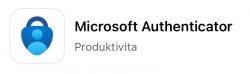
1 |
On your phone, install the Microsoft Authenticator application: Android: Play Store / iPhone: App Store Make sure you install the correct application! (see icon above!) |
4 |
On your phone, open the Microsoft Authenticator app and select Scan QR code. If this option doesn’t appear, tap + in the top right, choose Work or school account, and then select Scan QR code. |
2 |
When you sign in to CTU systems for the first time, enter your username (username@cvut.cz) and your CTU password. You will then be prompted to set up multi-factor authentication (MFA). |
5 |
Point your phone at your computer screen and scan the QR code. This adds the CTU account to the application on your phone. On the computer screen, confirm Next. |
3 |
In the on-screen wizard, repeatedly click Next until a unique QR code is generated. |
6 |
A numeric code will appear on the computer screen; enter it into the application on your phone and confirm. After pressing the Next button, your CTU account is protected by MFA. |
After setting up the MFA application, we recommend activating the passwordless sign-in feature, see the detailed guide.
How multi-factor verification works in the Microsoft Authenticator application
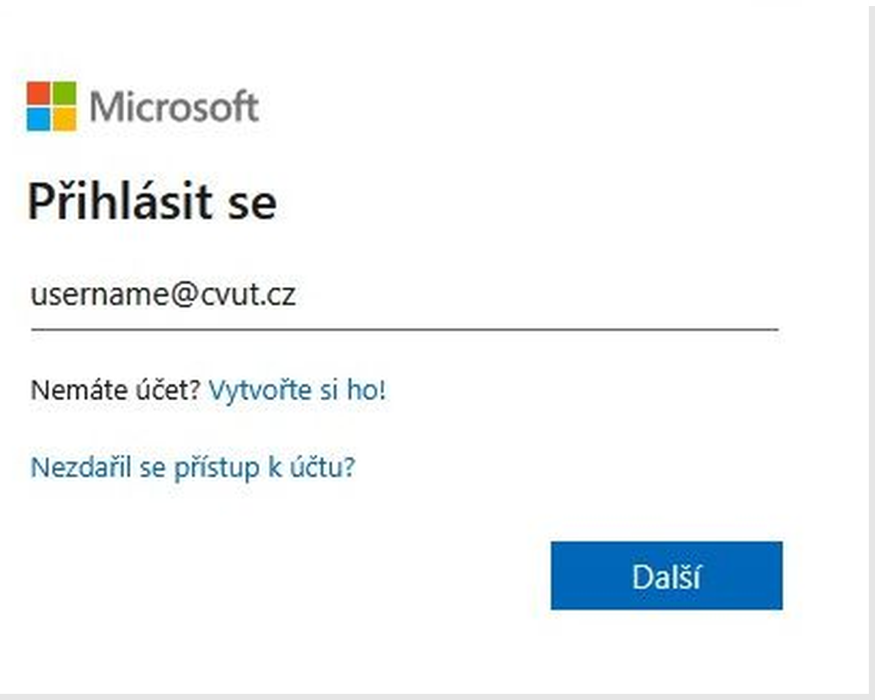 |
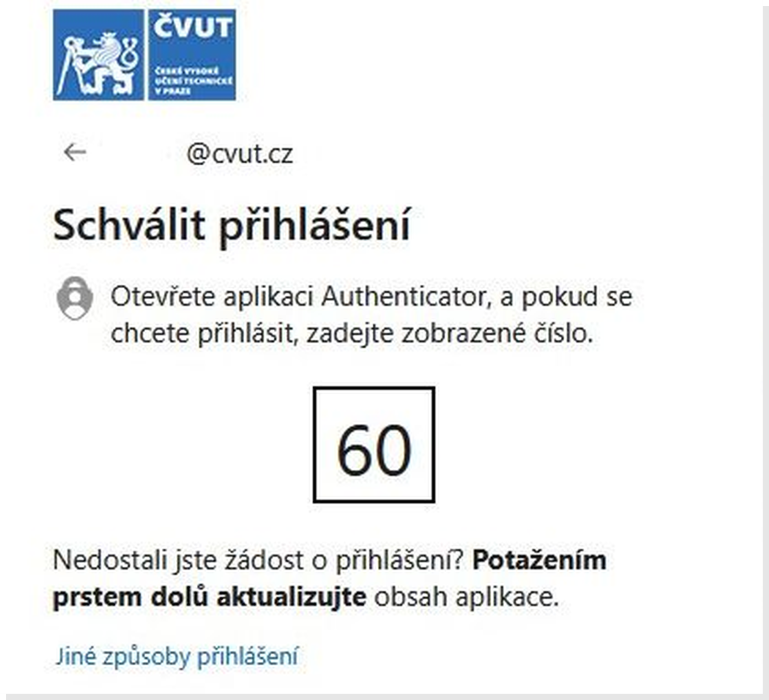 |
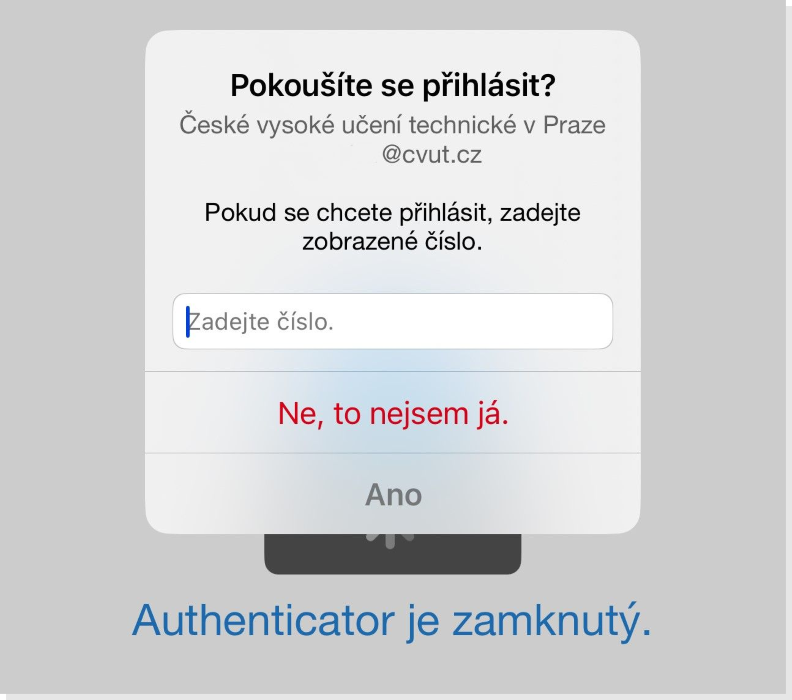 |
|
On the computer: When accessing the service, enter your sign-in name. |
On the computer: A unique numeric code will be displayed. |
On the mobile device: Enter the code shown on the computer into the application on your phone |
- You will find detailed information, procedures and additional settings in the sections below. If you encounter problems, contact your faculty IT.
- FEE operates its own MFA sign-in solution for its services; this solution differs from the University MFA!
The abbreviation MFA comes from the English term Multi-Factor Authentication, which in Czech means multi-factor verification or multi-factor authentication. It is a security mechanism that increases the level of user account protection by requiring identity verification using multiple independent methods.
We commonly encounter MFA, for example, when signing in to internet banking. You may also come across the term 2FA (two-factor verification or two-factor authentication), which designates a specific case of multi-factor verification using two different authentication elements.
How does MFA work?
Multi-factor verification adds an additional verification step to the regular password entry, which serves to confirm the user’s identity. This second factor can take various forms – for example, a one-time code sent to a mobile phone, verification using a security key, or biometric verification (e.g. fingerprint).
MFA is usually based on a combination of the following types of authentication data:
- Something you know – for example a password or PIN
- Something you have – a physical device such as a mobile phone, a hardware token – USB FIDO2 security key
- Something you are – a biometric attribute such as a fingerprint or face recognition

Multi-factor authentication (MFA) represents an effective security measure that significantly strengthens the protection of user accounts, sensitive data, and access to university systems. Its goal is to minimize the risk of unauthorized access, even in cases where login credentials are compromised.
Unlike traditional sign-in, which relies solely on knowledge of a password, MFA requires an additional verification element – for example, a code sent to a mobile device, biometric verification, or the use of a security key. Thanks to this, the account is protected even if an attacker obtains access to the password – without the second factor, they cannot access sensitive information.
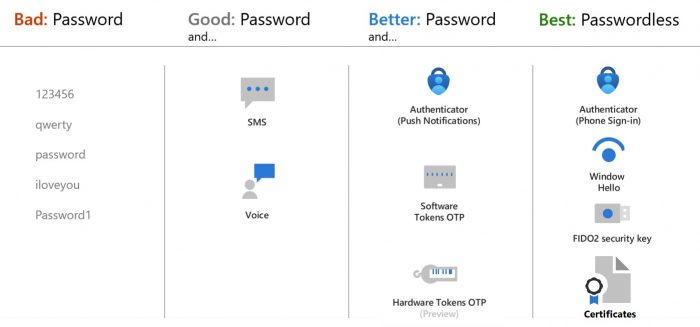
Based on our experience with the use of multi-factor authentication (MFA) at CTU, we recommend that users use the following methods, which ensure maximum convenience and efficiency during verification.
 I use MS Windows:
- We recommend using a mobile phone with the MS Authenticator application (guide)
- In the MS Authenticator application, activate the passwordless sign-in feature, which allows more convenient and secure access without entering a password (guide)
- On a computer running Windows, we recommend enabling sign-in using Windows Hello, for example via fingerprint, face recognition, or PIN code (guide)
- For work or school computers, we recommend joining the Microsoft Intune service, which provides device management and a higher level of security. For private devices, we recommend performing device registration for MFA management (guide)
- In the web browser you use, enable Windows single sign-on:
 I use macOS:
- We recommend using a mobile phone with the MS Authenticator application (guide)
- In the MS Authenticator application, activate the passwordless sign-in feature, which allows more convenient and secure access without entering a password (guide)
- For work or school computers, we recommend joining the Microsoft Intune service, which provides device management and a higher level of security. Private devices cannot be joined to Intune!
- Then, on a macOS computer, activate the option to sign in using Touch ID.
 I use Linux:
- We recommend using a mobile phone with the MS Authenticator application (guide)
- In the MS Authenticator application, activate the passwordless sign-in feature, which allows more convenient and secure access without entering a password (guide)
- Set up a backup MFA method (USB FIDO2 security key) (guide)
For smooth and secure use of MFA, we recommend registering at least two second factors. This will prevent complications in case one of them is lost or unavailable. For example, if you lose access to your mobile phone, you can still verify yourself using biometrics or a physical security token (USB FIDO2 security key).
This is a mobile application that increases the security of your accounts by serving for multi-factor authentication (MFA) – either by approving sign-ins via an “approve/deny” notification on the phone, or by generating time-limited codes, thereby replacing or supplementing passwords and also enabling passwordless sign-in using a fingerprint, face recognition, or PIN.
- Push Notifications: Instead of entering codes, you simply confirm the sign-in by tapping “Approve” in the application, which is faster and more secure.
- Time-based codes (TOTP): Generates six-digit codes that change every 30–60 seconds, for an additional layer of security when notifications are not available.
- Passwordless sign-in: Allows sign-in without having to enter a password, using only biometrics (fingerprint, face) or the device PIN.
- Passkey: Option to use verification via passkey.
- Support for various accounts: You can add personal Microsoft accounts (Outlook.com, OneDrive) as well as work and school accounts.
What you will need:
- A mobile phone (iOS 17+, Android 8+)
Installing and configuring the application using a computer and phone
- On your phone, install the Microsoft Authenticator application (iOS 17+, Android 8+):
- Android: Google Play Store
- iPhone: App Store
- When you sign in to ČVUT systems for the first time, you will be prompted to set up multi-factor authentication (MFA).
- Sign in using your university account in the format username@cvut.cz and your password.
- In the on-screen wizard, repeatedly click Next until a unique QR code is generated.
- On the phone, launch the Microsoft Authenticator application.
- Select Scan QR code. If this option doesn’t appear, tap + in the top right, choose Work or school account, and then select Scan QR code.
- Use your phone’s camera to scan the QR code shown on your computer screen.
- After successful scanning, the account is automatically added to the application.
- On the computer, complete the wizard for adding the application, which will prompt you to verify.
- If everything is set up correctly, a confirmation of the successful addition of the Microsoft Authenticator application will appear on the computer.
Older versions of the Android and iOS operating systems may not support all features and may not offer the same setup options for the Microsoft Authenticator application as newer devices. In some cases, the individual setup steps may also differ.
Windows Hello for Business is a secure and convenient way to sign in that allows you to sign in without entering a traditional password. Instead, it uses biometric data (e.g. fingerprint or face recognition) or a PIN, ensuring fast and at the same time secure sign-in.
This method is designed with both user convenience and a high level of security in mind. Authentication data is encrypted and stored locally directly on the device, and is never transferred to servers, which significantly enhances privacy protection. Activation of Windows Hello for Business is required for each device separately.
What you will need:
- Windows PRO/EDU 10 or 11
- Sign-in to a work/school account (EntraID)
- You must have another MFA method activated (e.g. Microsoft Authenticator)
- If Microsoft Authenticator cannot be used, contact your faculty IT.
- TPM 2.0 chip (how to find out the version)
How to set up Windows Hello for Business:
- Open Settings: Start → Settings → Accounts → Sign-in options
- Select a sign-in method:
- Face recognition
- Fingerprint
- PIN code
- Set a PIN (required step): Enter and confirm your PIN. You can also add letters and symbols to increase security.
- Set up biometric data (optional step):
- Face recognition
- Fingerprint
Synced passkeys on Apple devices is a modern way of signing in without a password. Instead of entering a password, you sign in using Face ID, fingerprint, or PIN on your device (iPhone, Mac, etc.). The passkey is securely stored in Apple iCloud Keychain and is automatically synchronized between devices, so you can sign in from anywhere without having to install additional software.
What you will need:
- An Apple device (iPhone, iPad, Mac)
- A version that supports Synced Passkeys (iOS 16, iPadOS 16, macOS 13)
- For initial activation, you must have another MFA method set up (e.g. Microsoft Authenticator)
- If Microsoft Authenticator cannot be used, contact your faculty IT.
Registering Synced Passkeys on iOS:
- On the mobile device, sign in to your profile at: https://mysignins.microsoft.com/security-info
- Click +Add sign-in method, select “Passkey” and click “Next”
- In the next window, click “Next” and choose where to save the passkey: “Save to Passwords app” and confirm “Add passkey”
- Name the verification method and click “Next”
- The passkey is now saved in iCloud storage
Registering Synced Passkeys on macOS (without a phone):
- On the MacBook, sign in to your profile at: https://mysignins.microsoft.com/security-info
- Click +Add sign-in method, select “Passkey” and click “Next”
- In the next window, click “Next” and confirm saving the passkey in the Passwords application by verifying with Touch ID
- Name the verification method and click “Next”
- The passkey is now saved in iCloud storage
Signing in using Synced Passkeys:
- On the sign-in screen, choose Other sign-in options and select Face recognition, fingerprint, PIN code, or security key.
- Confirm the desired passkey
- Verify yourself using biometrics depending on your device.
- You are signed in
A USB FIDO2 security key is a small physical device (e.g. YubiKey, Token2) used for secure passwordless sign-in or as a second verification step.
Instead of typing codes, you simply insert the key into a USB port (or tap it via NFC) and confirm the sign-in by touch or PIN. Sign-in is fast, simple, and very secure, because the key only works with specific websites and accounts and cannot be misused remotely.
USB FIDO2 security keys can also be used to sign in without a password:
What you will need:
- A USB FIDO2 security key (e.g. YubiKey, Token2)
- A computer with a USB port and a supported browser (latest version: Edge, Chrome, Firefox, Safari)
- You must have another MFA method activated (e.g. Microsoft Authenticator)
- If Microsoft Authenticator cannot be used, contact your faculty IT.
Registering the security key:
- Sign in to your profile at: https://mysignins.microsoft.com/security-info
- Click +Add method, choose Security key, and then USB or NFC.
- Insert the USB FIDO2 security key into the USB port and follow the on-screen instructions.
- Set up touch verification or a PIN and name your USB FIDO2 security key.
- After successful registration, the key will appear in the list of sign-in methods.
Signing in using a USB FIDO2 security key:
- On the sign-in screen, choose Other sign-in options and select Security key.
- Insert the USB FIDO2 security key into the USB port and confirm verification.
This verification method is not recommended for the following reasons. (details)
A third-party application that displays one-time numeric codes during sign-in, which change every 30 seconds. (e.g. Google Authenticator)
What you will need:
-
A mobile phone or computer with a TOTP application (e.g. Google Authenticator, KeePassXC, Authy, FreeOTP)
Registering TOTP:
- Sign in to your profile: https://mysignins.microsoft.com/security-info
- Click + Add method
- Choose Microsoft Authenticator application (this is a mandatory default step that the system requires)
- After selecting Microsoft Authenticator, you will see the option “Use a different authenticator app”
- Select this option
- A QR code or secret key (secret / seed) is displayed
Setting up a third-party application
- Open the selected TOTP application on your phone
- Add a new account:
- Scan the QR code, or
- Manually enter the secret key
- The application starts generating time-based codes (OTP), usually every 30 seconds
Completing the registration
- In the web form, enter the current code from the application to verify that everything works
- After confirmation, the method will appear in your list of sign-in methods
If you have purchased a new phone and want to use Microsoft Authenticator on it for signing in to your work or school account, follow the Microsoft Authenticator setup steps, but additionally you will need to verify the application on the new phone using the application on the old phone.
When replacing the device, do not delete or reset the old phone to factory settings until MFA has been successfully set up on the new phone!
When using the phone-to-phone data transfer feature, the MFA configuration will not be transferred! MFA must be set up manually again on the new phone!
What to do if I no longer have the old phone?
- If you no longer have your old phone, sign in using a previously configured backup method on the page https://mysignins.microsoft.com/security-info.
- If you do not have any backup method available, contact IT support, who will help you restore access.